
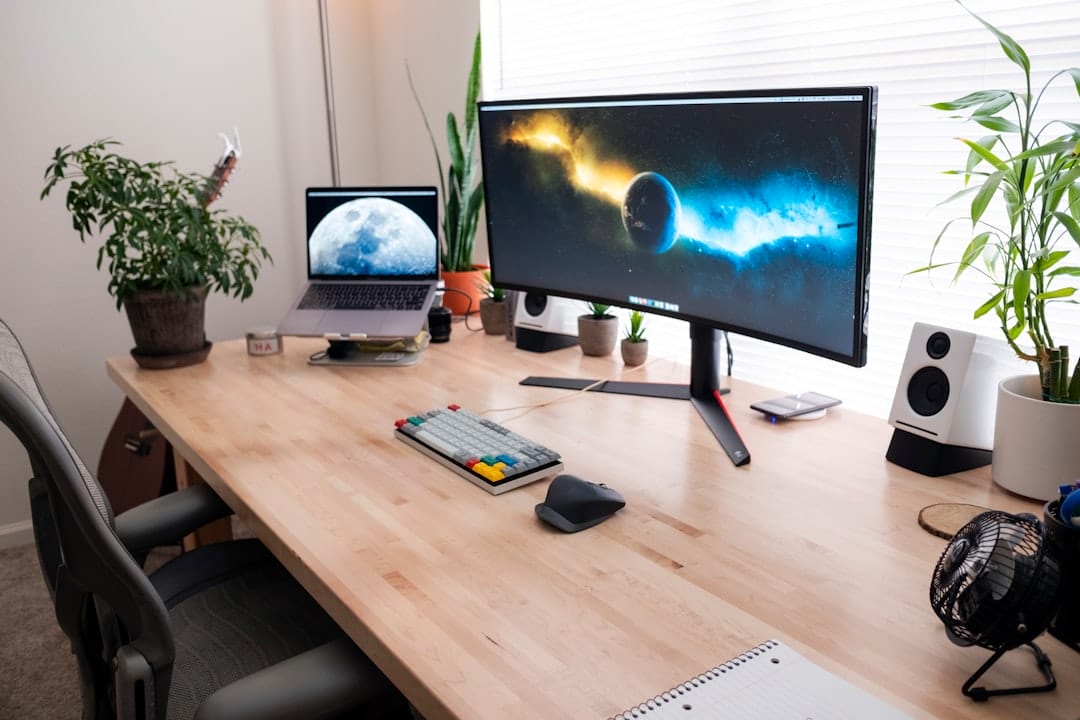
Photo by Luke Peters on Unsplash
Introduction
Every year Adobe rolls out new features that promise to shave minutes—or even hours—off a designer’s day. In 2024, the focus is unmistakably on speed. Whether you’re a freelancer juggling multiple client briefs or a studio looking to streamline large‑scale projects, understanding the latest Photoshop time‑saving trends can give you a decisive edge.
1. AI‑Driven Selections and Masks
Adobe’s Object Selection tool has been upgraded with generative AI that can isolate complex subjects in a single click. The new Generative Fill engine also learns from your past selections, improving accuracy over time.
- Why it matters: Reduces manual masking from minutes to seconds.
- How to use it: Choose
Object Selection, click on the subject, then clickRefine Edgeto let AI perfect the mask.
2. Smart Preset Libraries
Photoshop now lets you create dynamic presets that adapt to layer composition. A single preset can adjust exposure, color balance, and sharpening across any number of layers, preserving non‑destructive edits.
- Benefit: Apply a consistent look to a batch of images with one click.
- Setup tip: Record a preset on a test file, then save it to the
Presets > Adjustmentspanel for instant reuse.
3. Integrated Cloud Document Collaboration
Creative Cloud Files now support real‑time co‑editing. Multiple designers can work on the same PSD simultaneously, seeing each other’s changes live.
- Time saved: Eliminates the back‑and‑forth of versioned files.
- Best practice: Enable
File > Save to Cloudand share the link with teammates; use comments to flag revisions.
4. Keyboard‑First Automation with Actions 2.0
Adobe introduced Actions 2.0, a script‑like system that records not only menu commands but also UI interactions, such as dragging layers or adjusting sliders.
- Example: Record a sequence that resizes a canvas, adds a watermark, and exports to WebP.
- Shortcut: Assign the action to
F9for one‑tap execution.
5. Enhanced Content‑Aware Fill
The revamped Content‑Aware Fill workspace now includes a side‑by‑side preview, allowing you to compare the original and the fill instantly. AI suggests multiple fill options based on surrounding textures.
- Speed tip: Use the
Shift+F5shortcut, select the area, and pick the best AI suggestion without leaving the canvas.
6. Batch Processing with Adobe Sensei
Sensei‑powered batch processing can now apply AI adjustments across entire folders—think auto‑tone, sky replacement, or background removal—without opening each file.
- Workflow: Drag a folder into the
Batchpanel, choose a preset, and let Sensei handle the rest.
7. Streamlined Layer Management
New Layer Groups 2.0 let you nest groups within groups and rename them in bulk. The Layer Search bar now supports regex, making it easy to locate specific layers in massive projects.
- Pro tip: Prefix layer names with a consistent code (e.g.,
BG_,TXT_) and use the search bar to filter instantly.
8. Custom Brushes & AI Brush Strokes
Brushes have never been more intelligent. The new Brush Preset Manager allows you to store brush settings in a cloud library, while the AI Brush Stroke feature learns your stroke patterns and can auto‑apply them with a single click. This is especially useful for texture overlays, pattern creation, and quick stylization.
- Practical use: Create a custom brush for a signature brushstroke, then use the AI stroke shortcut to apply it across multiple layers without manually painting.
- Time saver: Reduces repetitive brushwork from minutes to seconds, freeing you to focus on creative decisions.
9. Enhanced Export Options
Exporting assets used to be a tedious step. Photoshop 2024 introduces the Export Presets Hub, which lets you save and share export settings (file format, resolution, compression level) across devices. The new Batch Export panel can now export multiple formats simultaneously, and the WebP option is now native, saving you an extra conversion step.
- Tip: Create a preset for client deliverables (e.g., 300dpi JPEG, 72dpi PNG, 200kb WebP) and apply it with a single click.
- Benefit: Consistency across projects and a significant reduction in export time.
Actionable Takeaways
- Start every new project by enabling Cloud Document sharing to keep version control simple.
- Create a master Smart Preset Library for your most common adjustments and assign them to keyboard shortcuts.
- Record at least three Actions 2.0 that cover routine tasks like exporting assets, applying watermarks, and resizing canvases.
- Leverage AI selections for any complex mask—don’t waste time with manual pen work unless absolute precision is required.
- Schedule a weekly “Batch Review” where you run Sensei batch jobs on incoming raw files.
- Use the new Brush Preset Manager to store signature brushes and apply them instantly with AI strokes.
- Save export presets for each client type and apply them with one click to avoid format mishaps.
Conclusion
2024’s Photoshop trends are all about working smarter, not harder. By embracing AI‑driven selections, dynamic presets, real‑time collaboration, powerful batch automation, and intelligent brushes, you can cut editing time dramatically while maintaining—or even raising—quality. These tools are designed to integrate seamlessly into existing workflows, so you won’t have to abandon familiar habits to reap the benefits. Start experimenting early, tweak the settings to match your style, and watch your productivity soar. In an industry where time is money, mastering these trends will keep you ahead of the curve and ready to tackle the next big project with confidence.